
Working with monitors
A monitor is one VPN endpoint that TunnelHQ checks on a schedule. Every check performs a real handshake for one of the 11 supported protocols and then sends traffic through the tunnel, so a healthy result means a client could connect and use it, not only that a port answered.
Adding a monitor
Section titled “Adding a monitor”On the Monitors page, click Add monitor. The Add VPN monitor dialog has two tabs: One monitor, described here, and Bulk import, for adding many at once.
Paste a config (recommended)
Section titled “Paste a config (recommended)”Paste a config or share link into the box at the top of the dialog. TunnelHQ recognizes share links such as vless://, vmess://, trojan://, and ss://, and the full text of WireGuard and OpenVPN config files. It fills in the protocol, host, and port, and names the monitor <PROTOCOL> - <host>, such as WIREGUARD - vpn.example.com. You confirm and save.
Enter the details manually
Section titled “Enter the details manually”Click Enter details manually to type everything in.
| Field | Details |
|---|---|
| Monitor name | Optional, except for OpenConnect. If it’s empty when you save, the name is the protocol followed by “Server”, such as “WIREGUARD Server”. |
| Host | Required. The server address, such as vpn.example.com or an IP address. |
| Port | Required for most protocols. OpenConnect has no port field when you add it; you can set one later in its settings. Config-file protocols such as WireGuard read the port from the config. |
| Protocol | Grouped into Standard (WireGuard, OpenVPN, IKEv2), V2ray/Xray (VLESS, VMess, Trojan, Shadowsocks, Hysteria2, TUIC), and Obfuscated (AmneziaWG, OpenConnect). |
Choosing a protocol shows its own fields, such as a WireGuard config, an OpenVPN username and password, or a connection URL. VPN protocols documents the fields for every protocol.
The Add dialog doesn’t ask how often to check. A new monitor runs every 3 minutes, or at your plan’s fastest interval if that’s longer. You can change it in the monitor’s settings.
Monitor settings
Section titled “Monitor settings”Open a monitor and go to its Settings tab. These settings apply to every monitor, whatever its protocol.
Locations
Section titled “Locations”A monitor tests from Any location by default. Add specific locations to confirm that the server is reachable from each one independently. TunnelHQ then tracks a status for each location and combines them into one aggregate status. Locations and status explains how.
Test interval
Section titled “Test interval”Test Interval is how often the monitor runs, in whole minutes, from your plan’s fastest interval up to 1,440 minutes (24 hours). The label shows the range your plan allows.
| Plan | Fastest interval | Tunnel limit |
|---|---|---|
| Free | Every 10 minutes | 5 |
| Starter | Every 5 minutes | 20 |
| Pro | Every 2 minutes | 100 |
| Business | Every minute | 500 |
If you choose an interval faster than your plan allows, the dashboard tells you and the API rejects the request.
Only tunnels count toward the limit. Uptime checks are free while Uptime is in beta.
Timeout and retries
Section titled “Timeout and retries”| Setting | Default | Allowed | What it does |
|---|---|---|---|
| Timeout (seconds) | 60 | 10–120 | How long to wait for a check before counting it as failed. |
| Retries | 2 | 1–10 | How many failed checks in a row it takes to mark the monitor Down. Until then, it shows Unknown. |
A monitor is checked again one test interval after its last check, whatever its status. With 2 retries, an outage is confirmed Down at the second failed check in a row, one interval after the first. A single-location monitor opens a Degraded incident at the first failed check.
Notification integrations
Section titled “Notification integrations”Choose which of the project’s alert channels receive alerts for this monitor.
Resend notifications
Section titled “Resend notifications”Resend Notification if Down X times consecutively repeats the alert while the monitor stays down, on every integration the monitor uses. 0 turns it off.
Tag monitors to group them by region, customer, environment, or anything else. On the Monitors page, filter by tags: a monitor matches if it has any of the tags you select, and the filter is kept in the page’s link, so you can share it.
To change many monitors at once, select them on the Monitors page and use the bulk actions bar. It can add tags, set locations, and set the resend setting.
Groups
Section titled “Groups”Groups organize tunnels on the Tunnels page, for example by provider, by server location, or by customer. A group is only a way to view them: it never alerts, never opens an incident, and never fires a webhook. Each tunnel still alerts on its own.
Groups never count toward your plan, so you can make one even when every tunnel on your plan is in use.
Adding tunnels to a group
Section titled “Adding tunnels to a group”-
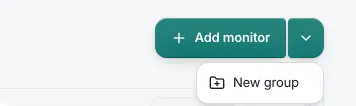
In the page header, open + Add monitor ▾ and choose New group. Type a name, then click Create group.
-
Select tunnels on the Tunnels page and use Move to group in the selection bar.
-
When you add a tunnel, choose a group in the Group field. The field isn’t shown in subscription mode, because the sync creates those tunnels: group them afterwards.
-
On a tunnel’s Settings tab, choose a group in the Group field. This works for subscription tunnels too.
-
New group…, inside either Group field or inside Move to group, creates a group on the spot.
Subscription tunnels stay in their group through every sync.
Reading a group
Section titled “Reading a group”Each group’s header shows:
- The worst status among its tunnels.
- Its name, and how many tunnels are up, as N of M up, plus · K paused if any are paused.
- A chevron that folds the group, and a ⋮ menu with Rename group and Delete group.
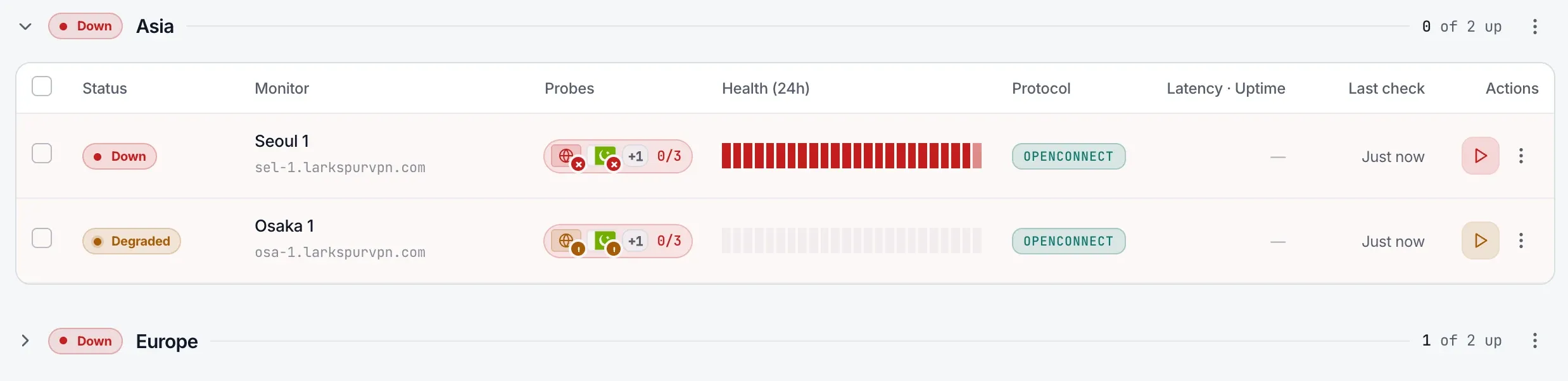
Deleting a group keeps its tunnels. They move to Not in a group, and their history, alerts, and plan count don’t change.
A group can’t be paused. To pause every tunnel in a group, tick the group’s select-all, then click Pause.
The view picker in the filter bar lists tunnels By group, By protocol, or with No grouping. Your choice is remembered in this browser, separately from the Uptime page’s.
Tunnels and Uptime keep separate lists of groups: a tunnel can’t join an Uptime group, and a check can’t join a Tunnels group. See Uptime groups.
Managing a monitor
Section titled “Managing a monitor”Open a monitor to manage it:
- Run Now runs an on-demand check without waiting for the schedule.
- Pause monitoring stops checks until you click Resume monitoring. The monitor stays in your list, but the scheduler skips it. You can also pause individual locations.
- History lists every heartbeat with its status, region, connect time, latency, and message.
- Settings lets you change any setting above, or delete the monitor.
Connect time and latency
Section titled “Connect time and latency”Each passing check measures two times, shown on the monitor’s page and in its History:
| Time | What it measures |
|---|---|
| Connect time | How long the tunnel took to come up. For VLESS, VMess, Trojan, Shadowsocks, Hysteria2, and TUIC, it’s the time to first contact with the server. |
| Latency | One round trip through the tunnel once it’s up. |
A failed check measures neither.
The test journey
Section titled “The test journey”Every check records the stages it went through, so a failure shows where it failed.
| Stage | What happens |
|---|---|
| Setup | TunnelHQ prepares the connection test. |
| Connect | DNS, reachability, and the protocol handshake. On success, the check records the tunnel IP that was assigned. |
| Verify | Real traffic goes through the tunnel, and the check records the exit IP it left from. |
Expand any entry under Recent Test Results, or any row in History, to see the stages with per-stage timings. Failed checks also include a Diagnostic from the checker that explains why the check failed.
What a failed check says
Section titled “What a failed check says”Every failed check carries a message. The message tells you whether the problem is your server or TunnelHQ’s checker, and what happens to the monitor.
| Message | What it means | Effect on the monitor |
|---|---|---|
| Tunnel unreachable | The tunnel never came up: the server didn’t answer, or the handshake failed. | Down |
| Tunnel established - Internet is stuck | The tunnel came up, but traffic through it didn’t reach the internet. The check sends real requests to well-known sites through the tunnel, so the usual causes are the server’s forwarding or NAT, its DNS, or an egress firewall. | Down |
| Server reachable — it rejected the monitor’s credentials or certificate. | The server answered and refused the monitor’s credentials or certificate. | Degraded for that location, with no alert. Exception: an OpenVPN, OpenConnect, or IKEv2 monitor that passed a check in the last 30 days treats the refusal as an outage, and goes Down after its retries and alerts. |
| Couldn’t complete this check — the monitor’s configuration or credentials were rejected. The server’s status is unknown. | The monitor’s configuration couldn’t be used, so there’s no verdict on the server. | Unknown, unless the monitor was already down, in which case it stays Down. No alert. |
| VPN check failed | Any other failure. |
These messages mean TunnelHQ’s checker failed, not your server. The check shows Unknown, never Down:
- Couldn’t complete this check — a fault on the monitoring checker, not your server.
- Monitoring infrastructure unreachable
- Checker returned an error
- VPN check timed out
- VPN check inconclusive — monitoring infrastructure timed out
- Checker resource issue (e.g. disk full) - try again later.
Each protocol page lists the failures most common for that protocol and what to check.